To remove a semantic rule from a data element, take the following steps:
Expand the selected data element node.
Expand the node "Semantic Rules" nested under the data element
node.
Highlight the semantic rule and then right click.
In the popup menu, select the option "Remove Semantic Rule".
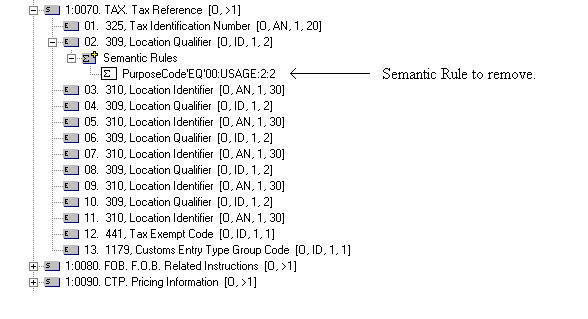
The following steps will demonstrate how to remove a semantic rule from a data element
reference. As an example, we will remove the semantic rule "PurposeCode'EQ'00:USAGE:2:"
from the data element 309 (Location Qualifier) that has an ordinal number 2 in
the data segment TAX (Tax Reference), which in turn has an ordinal number 6 in the ASC/X12 Transaction Set
850.
Expand the "Semantic Rules" branch under the data element reference
from which the
semantic rule is to be removed. Then find the semantic rule from the list.
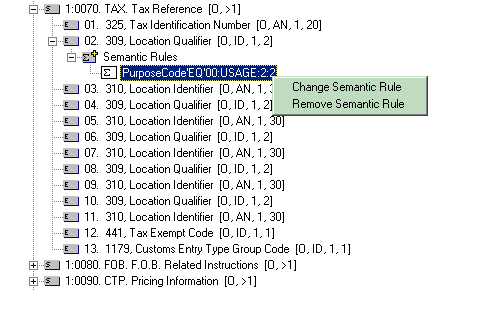
Highlight the semantic rule, and then right click to display the
popup menu. In the example, the semantic rule
"PurposeCode'EQ'00:USAGE:2:" has been selected.
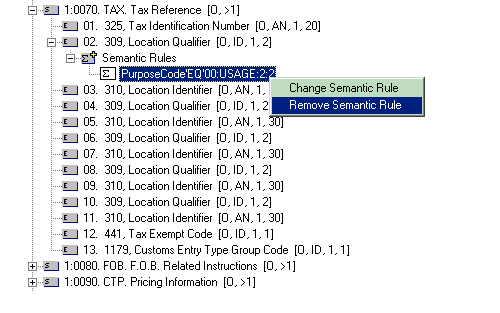
Highlight "Remove Semantic Rule" at the popup menu option,
and then click to select the option.
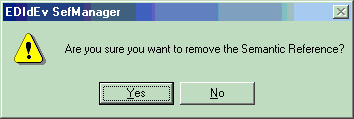
A dialog-box will be displayed to confirm if the semantic rule should
really be removed. NOTE: Removing a semantic rule cannot be
undone once it has been successfully executed.
Click the button "Yes" to remove the Semantic Rule.
Otherwise click on "No".
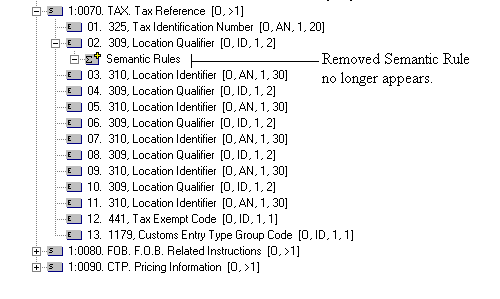
If the semantic rule was successfully removed, it should no
longer be displayed in the "Semantic Rules" list. In our example, the semantic rule "PurposeCode'EQ'00:USAGE:2:" should no longer be
listed.
The Semantic Rule Table should also no longer have the semantic rule listed.