To add a semantic rule to a data segment, take the following steps:
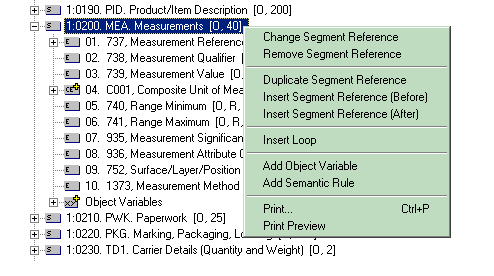
Highlight the selected data segment and then right click.
In the popup menu, select "Add Semantic Rule".
In the dialog box, specify the condition and the action of the semantic rule.
The following steps will demonstrate how to add a semantic rule to a data
segment reference. As an example, we will add the semantic rule (see
below) to the data segment reference MEA (Measurements), which has an ordinal
number 22 in the ASC/X12 Transaction Set 850.
If data element 350 at LIN1800 is equal to "ITEM01" then MEA200 must
be used
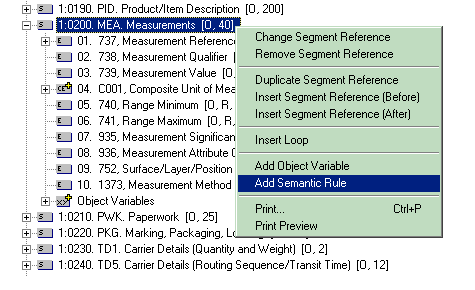
Highlight and right click the data segment reference where the semantic rule is
to be added.
From the popup menu select "Add Semantic Rule".
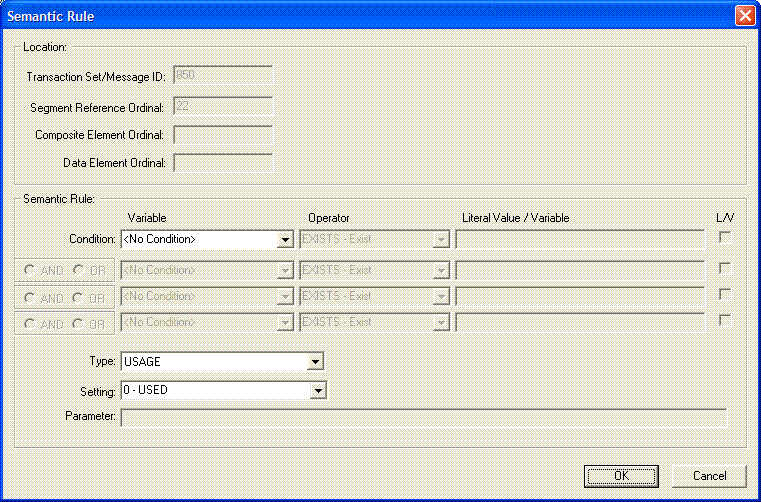
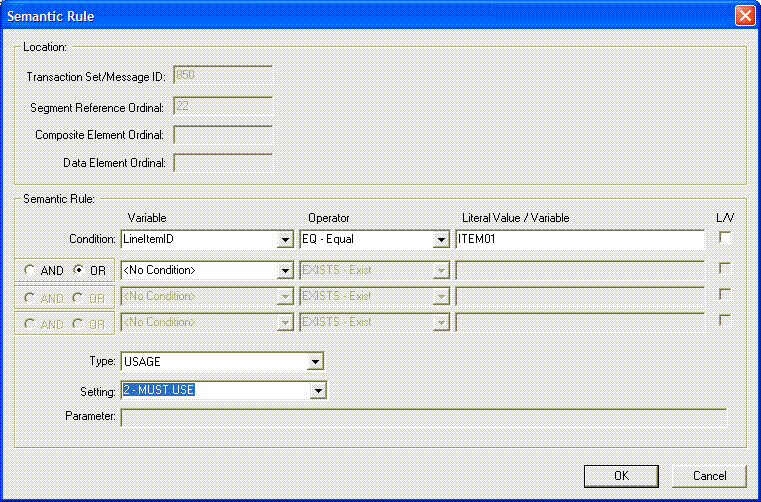
The following dialog box will show.
Location. The Transaction Set/Message ID field displays the ASC/X12
Transaction Set or UN/EDIFACT Message of the data segment reference. The Segment
Reference Ordinal field displays the ordinal number of the data segment
reference to which the semantic rule will be added. In the example shown,
the semantic rule is being added to the data segment reference at ordinal 22 in
the ASC/X12 Transaction Set 850.
The following semantic fields to enter are:
Condition - Three fields make up the conditional clause of the semantic
rule. They are:
Variable - Enter into this field the object variable name of the semantic
object whose value is to be tested. The drop down combo box will only
list the object variables available for selection. If the expected object
variable is not in the list, it would have to be added beforehand. For
additional information on how to add an object variable, see the topic
Object Variables. If there is no condition for the semantic rule,
select the item <No Condition>. This means that the action
clause of this semantic rule will always be executed whenever the object is
encountered.
Operator - For the conditional clause, the following operators are available
and are listed in the combo box for selection:
EQ - Equal
NE - Not Equal
GT - Greater Than
GE - Greater Than or Equal
LT - Less Than
LE - Less Than or Equal
EXISTS - Exist
NEXIST - Not Exist
Literal Value / Variable - Enter into this field the following:
A literal value that will be compared against the value of the object variable
specified above. Quotes should not be included unless it is part of the
value.
An object variable whose value is compared to the value of the previous object
variable specified above.
L/V (Check box) - This check box indicates if the string entered in the edit
box "Literal Value / Variable" above is either a literal value or an
object variable. If unchecked, the string is accepted as a literal
value. If checked, the string is accepted as an object variable. A
list of existing object variables are displayed for selection.
There is no limit to the number of conditions a semantic rule can
contain. The SefManager, however, limits the number of conditions to
4. Each condition is linked to the other by a logical AND / OR operator,
and all conditions must result to TRUE for the action to be executed.
Type - Enter into this field the type of modification to make should the
conditional clause result to TRUE. These are:
APPVALUE - Specifies the Value List to reference if the conditional clause is
true.
COMEXIT - Specifies the ActiveX/COM interface and the method to execute if the
conditional clause is true.
LOCALCODE - Specifies the number of the code set to use if the conditional
clause is true.
USAGE - Specifies the user requirement of the object if the conditional clause
is true.
Setting/Program.Function - Enter into this field the value to modify the object
depending on the Type selected above:
For APPVALUE, a list of all the list in the Value Lists table is displayed in
the combo-box for selection.
For COMEXIT, enter the ActiveX/COM program ID and method to execute. It
must have the following syntax:
<program identifier>.<method name>.
Example, "FrediTester.Sample.Test". Where
"FrediTester.Sample" is the program ID of the interface and
"Test" is the method to execute in the interface.
For LOCALCODE, enter the number of the code set.
For USAGE, the following is displayed in the combo-box for selection:
"0 - USED"
"1 - NOT USED"
"2 - MUST USE"
"3 - RECOMMENDED"
"4 - NOT RECOMMENDED"
Parameter - This field applies only if the modification Type is COMEXIT.
If there is no parameter to pass to the method then leave this field
blank. Otherwise, enter into this field the string parameter to pass to
the ActiveX/COM method for execution. The value entered in this field is
passed as a single string to the method. For example, if the value 1,2,3
was entered, then the single string "1,2,3" is passed to the
method. One or more object variables can be embedded within the parameter
string if the variable names are preceded with the character '@'. In this
case, the variable name in the string is replaced with the value of the object
variable before passing the string to the method. For example, if the
parameter has the following string:
1,2,@NAME,5
If the object variable NAME has the value "John Smith", then the
string parameter is passed to the method as:
1,2,John Smith,5
Please note that the ActiveX/COM method must be able to accept a single string
as an input parameter.
In the example scenario, enter the following data in their respective fields,
and then click "OK" to accept the entries.
Condition: LineItemID'EQ'ITEM01
Type: USAGE
Setting: 2
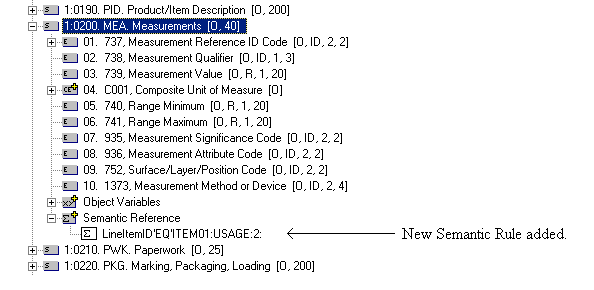
If the semantic rule was added successfully, it will be displayed under the
branch "Semantic Rules" under the data segment reference. In
this example, the semantic rule "LineItemID'EQ'ITEM01:USAGE:2:",
which has just been added, will show in addition with the other existing
semantic rules that were assigned to the same location.
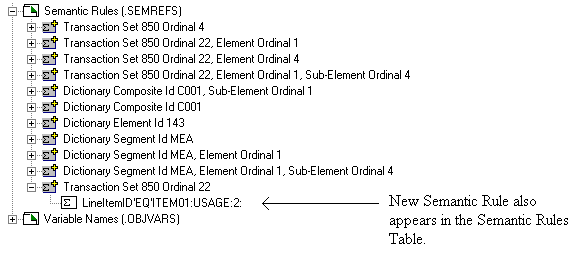
The Semantic Rules Table will also be updated with the new semantic rule that
was just added.